
This will be a guide, even for my future self, showing step by step how to build a media viewing system. The main goal is to have a way to watch any movie or TV show from anywhere, without depending on streaming services with limited catalogs, services that may remove media that used to be available, add ads even to paid plans, and fail to deliver 4K quality even when you pay for it.
The idea is that by the end of this blog post, you will have a starting point for building an automated media request and viewing system. When you click a button to request a movie, the system will download it in the best possible quality, with subtitles already configured and available to watch on any device.
But I will say upfront: it is not simple. You need to understand how each part works and how everything integrates. Each service has its own details, and to use them properly you will need to spend a few hours reading documentation and watching YouTube videos. It took me more than a week to get everything working, and there is still a lot to improve.
Even though this is an introductory guide, it is still a technical one, because we will use several programs that communicate with each other. So I expect you to have at least some previous knowledge of topics such as Docker, servers, networking, video, and so on.
TL;DR: How to configure Jellyfin, Jellyseerr, Bazarr, Radarr, Sonarr, Prowlarr, qBitTorrent, and other services.
Hardware
To host the services, we need hardware. In this case, it can be anything from an old laptop sitting unused to a rented server. In my case, I use a NanoPi R4S with 4 GB of RAM to run everything, but the most important thing here is having enough storage for the movies and TV shows.
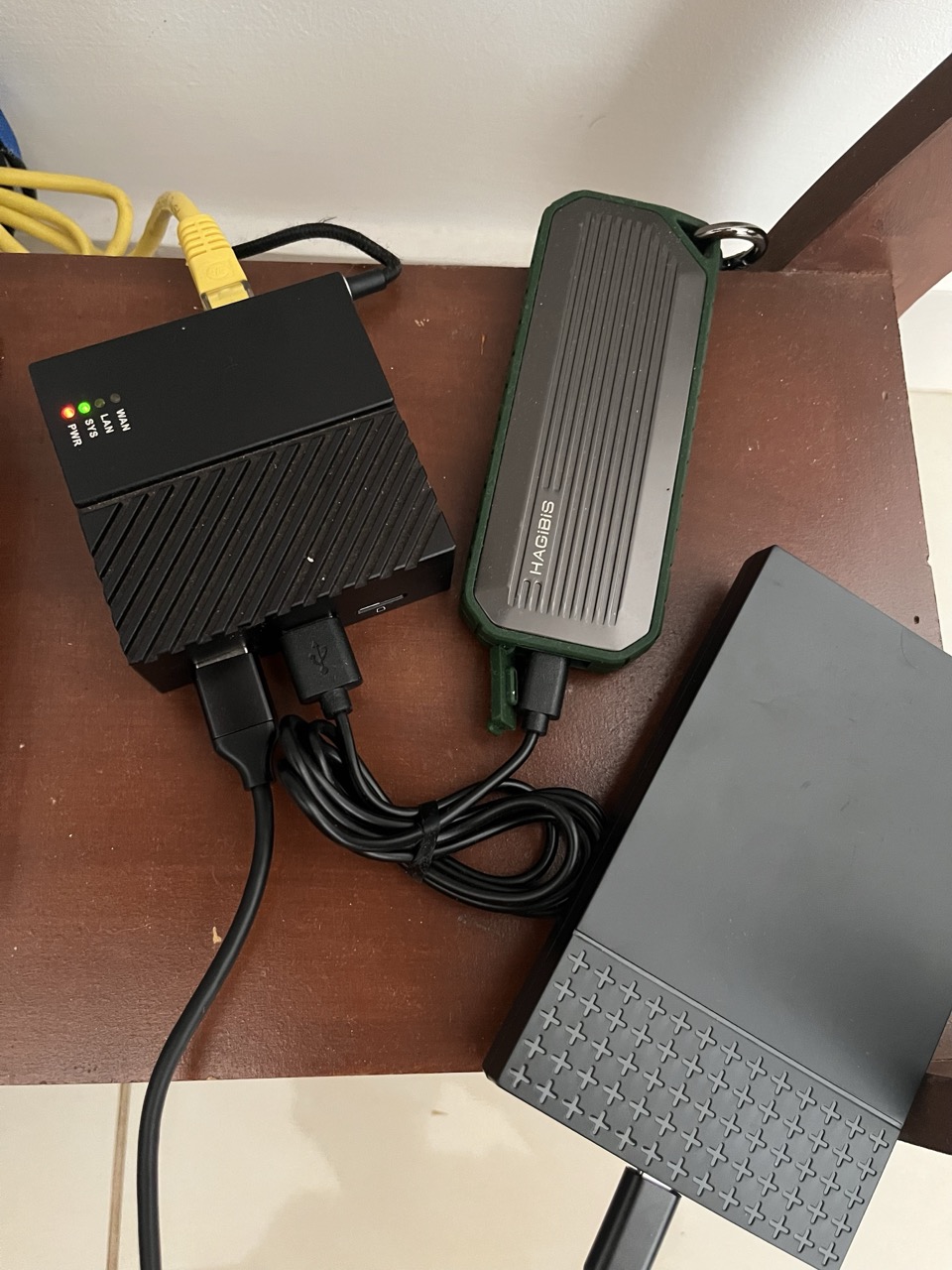
The idea is to use something that can work as a server, meaning it stays plugged in and running 24/7, so you can access the services whenever you want.
Services
Right now, the most practical way to run these programs is with containers, more specifically Docker with Docker Compose. Personally, I create one folder for everything I host at home, so the directory tree looks like this:
.
├── appdata
│  └── ...
├── configs
│  └── ...
├── docker-compose.yaml
└── README.md
The docker-compose.yaml file contains all the containers needed to run the services. The configs and appdata folders contain, respectively, configuration files and application data files, the kind of data that is not useful enough to be saved in git, for example.
We will use Jellyfin, Jellyseerr, Bazarr, Prowlarr, Radarr, and Sonarr.
It works roughly like this:
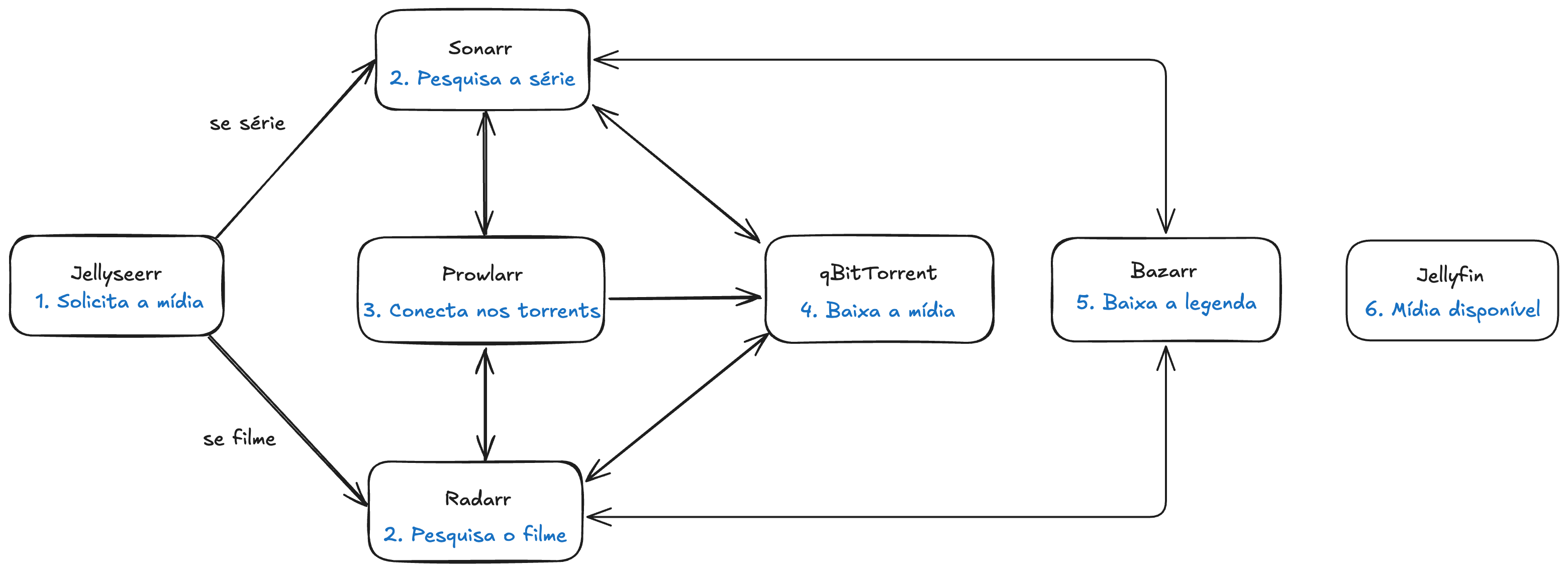 The only manual part is step 1. Everything else runs in the background. Jellyfin is where we will watch the media, and because it reads the files from the HD/SSD, it does not need to connect to the other programs. The media will already be ready on disk.
File structure
One thing I do not see many people talk about is how to properly structure media directories and files. We do not want duplicate files, because movies can take up a lot of space.
The ideal setup here is to have an HD/SSD dedicated only to media. That way, you can reuse it on any other device. Since we are using Docker, it is recommended to structure the container volumes properly so that multiple copies can exist while taking up space only once, using hardlinks. The community convention is to structure it like this:
/mnt/gigachad/data
├── media
│  ├── movies
│  └── tv
└── torrents
   ├── movies
   └── tv
It is important that container directories and volumes are consistent so hardlinks work correctly. I recommend reading the TRaSH Guides. There is a lot of useful information there.
To begin, create the docker-compose.yaml file and follow the instructions for each service below. Once everything is complete, run docker compose up -d.
qBitTorrent
This is the main program that will download the torrents. Think of it like µTorrent, but hosted on our server.
The compose file can look like this:
services:
  qbittorrent:
    image: linuxserver/qbittorrent:latest
    container_name: qbittorrent
    restart: on-failure:3
    healthcheck:
      test: curl -fsS http://127.0.0.1:8080/api/v2/app/version https://icanhazip.com
      start_period: 30s
      start_interval: 5s
      retries: 3
    ports:
      - '8080:8080'
    environment:
      - TZ=America/Sao_Paulo
      - WEBUI_PORT=8080
      - PUID=1000
      - PGID=1000
    volumes:
      - ./configs/qbittorrent:/config
      - /mnt/gigachad/data/torrents:/data/torrents/
It is important to add health checks to every container whenever possible. Since qBitTorrent connects to the internet, the health check connects to a simple website to validate connectivity. After starting the container, access it at http://IP:8080.
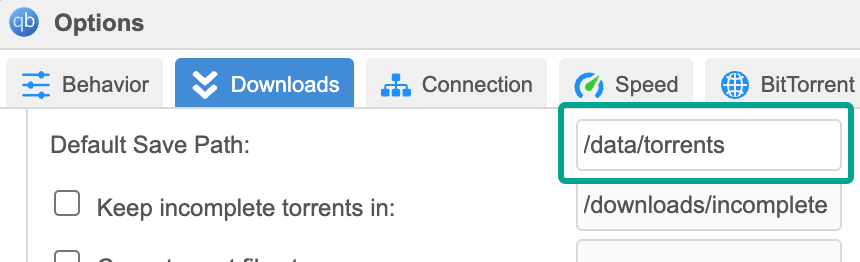
Since we are using a specific file structure, we need to configure the services to use it. In qBitTorrent’s settings (Tools -> Options -> Downloads), change Default Save Path to our torrents directory:
But how do we separate by folders (tv/movies)? We separate them by categories. In the sidebar on the main page, there is an expandable Categories menu. Right-click it to create categories. Create one for TV and another for movies. For each one, set tv/tv and movies/movies:
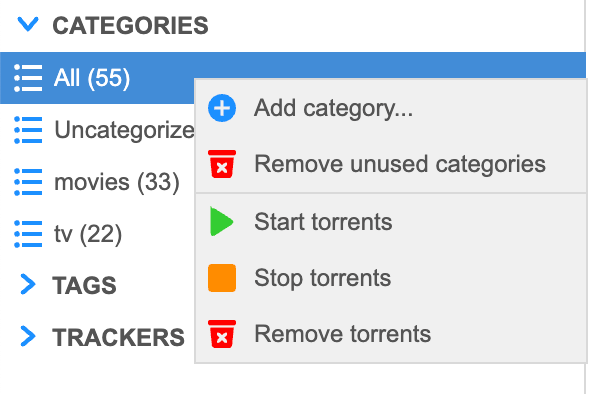
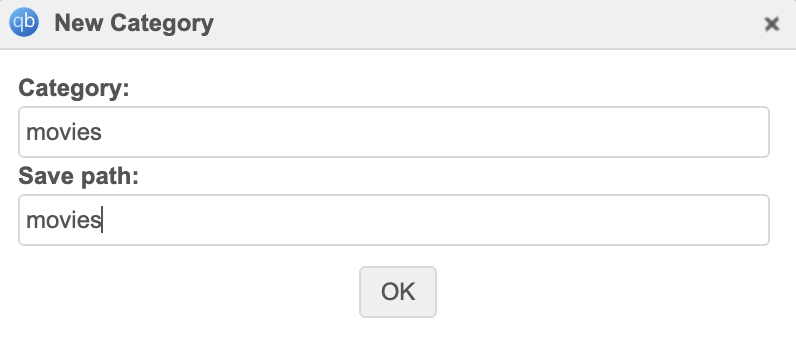
This way, movies will be downloaded to /data/torrents/movies and TV shows to /data/torrents/tv.
But how will qBitTorrent know what is a movie and what is a TV show? We will configure that in Radarr and Sonarr.
For this category separation to work, you need to enable automatic management mode. If you do not enable it (manual mode is the default), movies and TV shows will not go to the correct folders. They will go only to /data/torrents/. Switch it to automatic in the menu shown below.
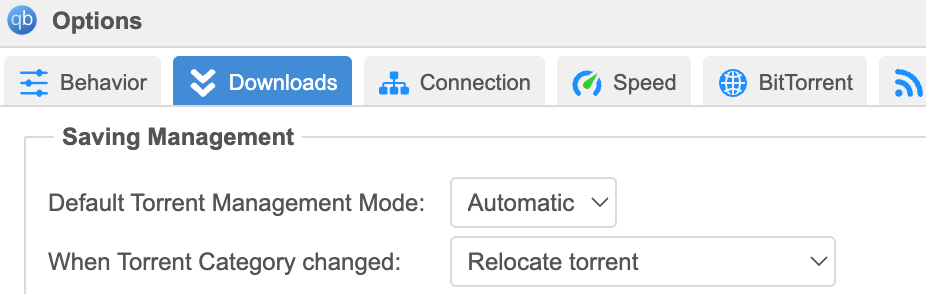
There is more information about qBitTorrent paths in the TRaSH Guides (check the image in the link).
Flare-bypasser
To search for torrents, Prowlarr (which we will discuss next) searches torrent indexers, which are the websites you visit to look for something, such as TPB, RarBG, and others. However, some of these sites use Cloudflare DDoS protection, which makes non-human access harder by showing a captcha before the site. This happens with 1337x, for example.
Fortunately, there are services that can bypass this by solving the captcha automatically. The problem is that Cloudflare constantly monitors these programs and blocks them. This happened with flaresolverr, which used to be the most famous tool for this purpose, but after a Cloudflare update it stopped working.
After that, I chose to use flare-bypasser, a direct alternative to flaresolverr that works the same way. The advantage is that services that support flaresolverr, such as Prowlarr, will also support this one. You only need to point them to the container.
Add this to docker-compose.yaml:
flare-bypasser:
    image: ghcr.io/yoori/flare-bypasser:latest
    container_name: flare-bypasser
    restart: on-failure:3
    environment:
      UNUSED: "false"
      DEBUG: "false"
      VERBOSE: "false"
      SAVE_CHALLENGE_SCREENSHOTS: "false"
This is a very simple service. There is nothing to configure; just leave it running.
After searching a bit more, I found Byparr. It will probably work the same way, but since I found it later, I do not have a reason to switch. Choose whichever you prefer.
Prowlarr
Prowlarr is a torrent indexer aggregator. What this service does is centralize indexers and provide a way to interact with all of them in one place, so other services, such as Radarr and Sonarr, can search for torrents.
To run it with Docker, add this to your docker-compose.yaml:
prowlarr:
  image: linuxserver/prowlarr:latest
  container_name: prowlarr
  restart: on-failure:3
  healthcheck:
    test: curl -fsS http://127.0.0.1:9696/ping
    start_period: 45s
    start_interval: 5s
    retries: 3
  depends_on:
    - flaresolverr
  environment:
    - TZ=America/Sao_Paulo
    - PUID=1000
    - PGID=1000
  volumes:
    - ./configs/prowlarr:/config
Add whichever indexers you prefer. Prowlarr supports many of them, from famous public trackers and anime trackers to private ones.
Some indexers will need flare-bypasser, such as 1337x. To add it, go to Settings -> Indexers -> Indexers Proxies and add one with the FlareSolverr type. As I said before, the bypasser works the same way as flaresolverr, so it will work. It will look like this:
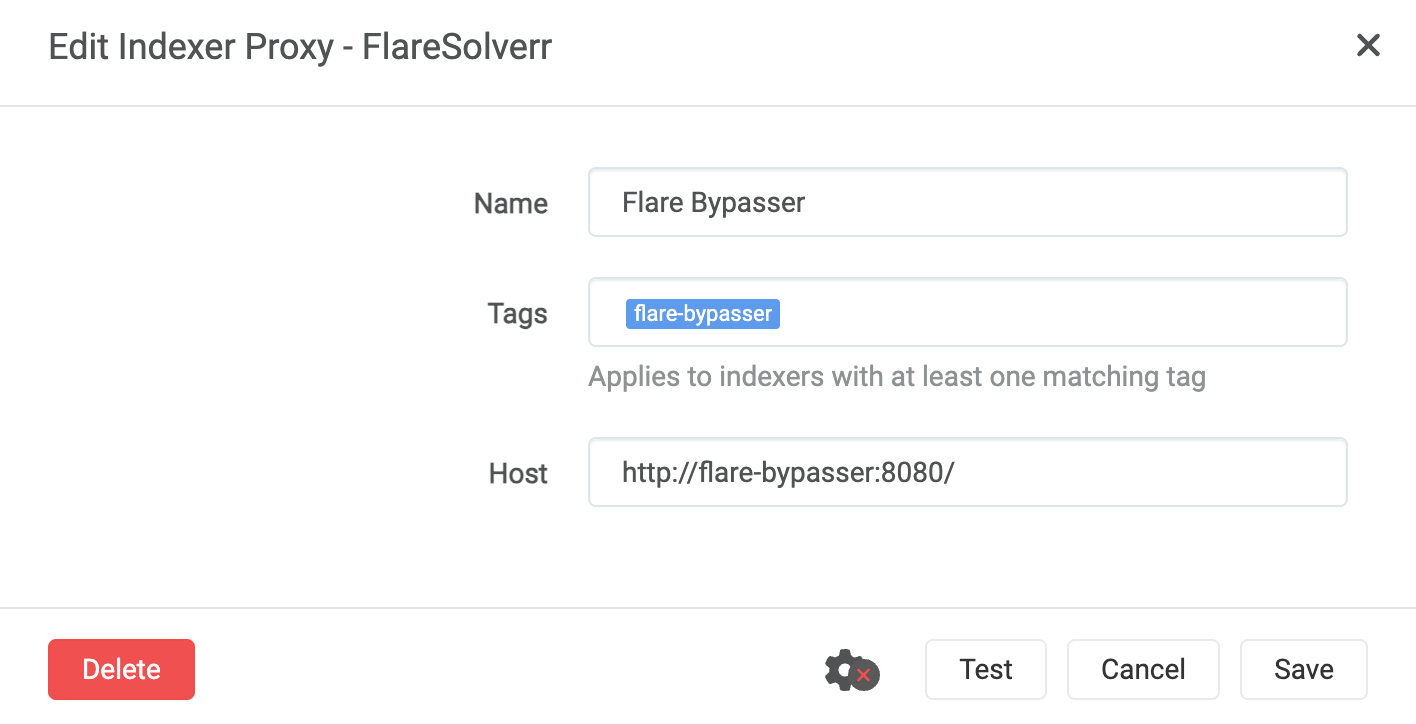
For every indexer you add that is behind Cloudflare (Prowlarr will show this when you add it), add the flare-bypasser tag so Prowlarr can search it.
Radarr
This is one of the most important services in this stack. Radarr is the manager exclusively for movies. It is responsible for choosing a good-quality torrent, and if it finds one you do not like, you can change the choice.
Radarr also has a scoring/ranking feature for each torrent it finds. For each torrent characteristic (codec, container, language, and so on), it assigns points. The idea is to download only torrents that reach a minimum score, filtering out low-quality torrents. That part is more complicated and will be left for another post.
Add it to your docker-compose.yaml:
radarr:
  image: linuxserver/radarr:latest
  container_name: radarr
  restart: on-failure:3
  healthcheck:
    test: curl -fsS http://127.0.0.1:7878/ping
    start_period: 45s
    start_interval: 5s
    retries: 3
  depends_on:
    - qbittorrent
  environment:
    - TZ=America/Sao_Paulo
    - PUID=1000
    - PGID=1000
  volumes:
    - ./configs/radarr:/config
    - /mnt/gigachad/data:/data
Pay attention to the volumes. In this app we need to configure a few things.
First, configure the movie download directory. Go to Settings -> Media Management -> Add Root Folder and select the /data/media/movies folder inside the container (which is mapped to your HD/SSD):
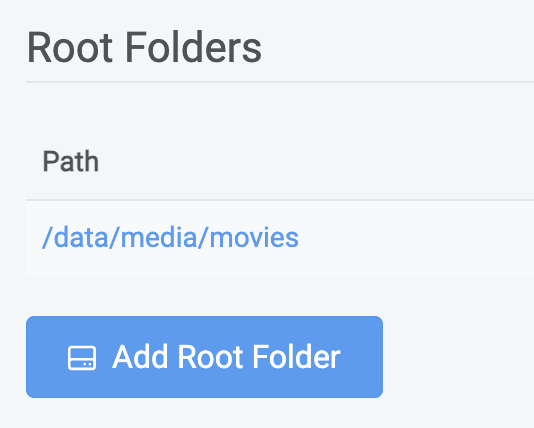
Then go to Download Clients and add the qBitTorrent service. Under the password, set movies as the category:
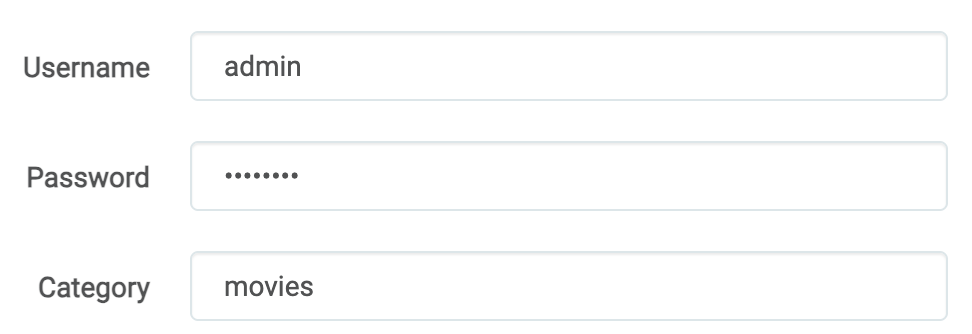 This is how everything gets separated into the correct folders, both by root folder and by categories.
You also need to configure Radarr to integrate with Prowlarr. This is done inside Prowlarr. Open it, go to Settings -> Apps, and add the Radarr URL:
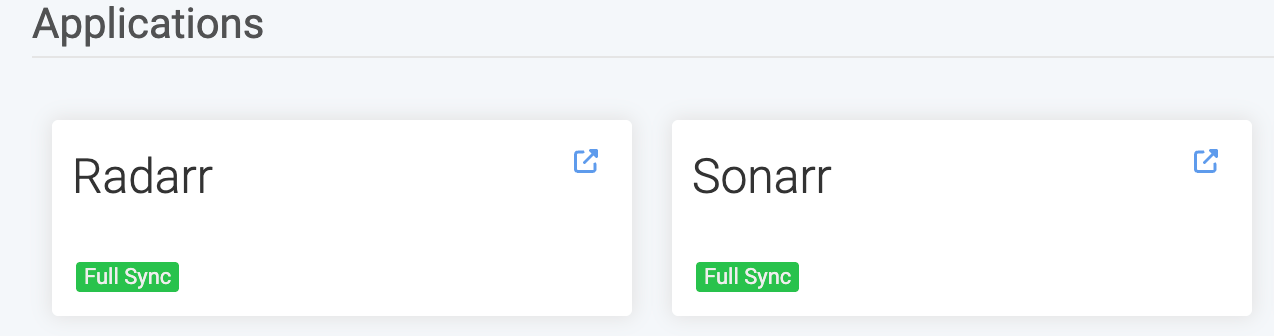
In general, this is enough to make it functional. But there are many other settings worth checking, such as Profiles (the scoring system I mentioned), movie naming (to include important media information, such as codecs), and others. Read the documentation.
Sonarr
Sonarr is practically a copy of Radarr, but for TV shows. Do everything you did in the previous step, but change the root folder to /data/media/tv and set tv as the category in the qBitTorrent Download Client.
Add this to docker-compose.yaml:
sonarr:
  image: linuxserver/sonarr:latest
  container_name: sonarr
  restart: on-failure:3
  healthcheck:
    test: curl -fsS http://127.0.0.1:8989/ping
    start_period: 45s
    start_interval: 5s
    retries: 3
  depends_on:
    - qbittorrent
  environment:
    - TZ=America/Sao_Paulo
    - PUID=1000
    - PGID=1000
  volumes:
    - ./configs/sonarr:/config
    - /mnt/gigachad/data:/data
Jellyfin
Finally, the main service in the whole stack. If you are reading this, you probably already know Jellyfin. Personally, I like Plex’s UI/UX more. It feels more like a professional and mature product, unlike Jellyfin, which sometimes feels like it was built by a backend developer. But using Plex is out of the question because of its recent market positions.
Jellyfin works independently, meaning the previous services are only integrations that work very well with it. You can use Jellyfin by itself, simply pointing it to a folder with many movies, for example. Because of that, configuring it to be usable is easier.
Add this to docker-compose.yaml:
jellyfin:
  image: linuxserver/jellyfin:latest
  container_name: jellyfin
  restart: on-failure:3
  environment:
    - TZ=America/Sao_Paulo
    - PUID=1000
    - PGID=1000
  volumes:
    - ./configs/jellyfin/:/config
    - /mnt/gigachad/data/media:/data/media
Go to Dashboard -> Libraries -> Add Media Library. Add two libraries, one for movies and one for TV shows, and configure them however you prefer:
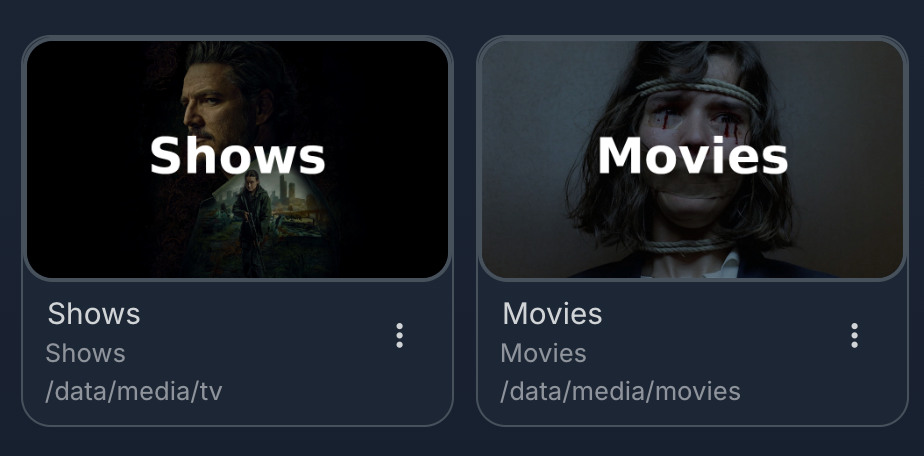
It is worth checking the plugins and general settings to adapt Jellyfin to your usage and hardware, especially if you have transcoding support. My plugin recommendations are: Intro Skipper, OpenSubtitles, Playback Reporting, Reports, Streamyfin, and Subtitle Extract.
Jellyseerr
Jellyseerr is very useful, especially if more people use your Jellyfin. Because it integrates with Radarr and Sonarr, people can request media without you, the administrator, having to manually open Radarr and download it there. Users can also have their own logins and request movies or TV shows themselves, and you can choose whether to approve or reject each request.
Add this to your docker-compose.yaml:
jellyseerr:
  image: ghcr.io/fallenbagel/jellyseerr:latest
  container_name: jellyseerr
  restart: on-failure:3
  healthcheck:
    test: "wget http://127.0.0.1:5055/api/v1/status -qO /dev/null"
    interval: 30s
    retries: 10
  environment:
    - TZ=America/Sao_Paulo
  volumes:
    - ./configs/jellyseerr/:/app/config
The main configuration is the integration with Radarr and Sonarr. Go to Settings -> Services and add the URL for both services. By using http://radarr:7878, it will use Docker’s internal network. Make sure to select the Default Server option:
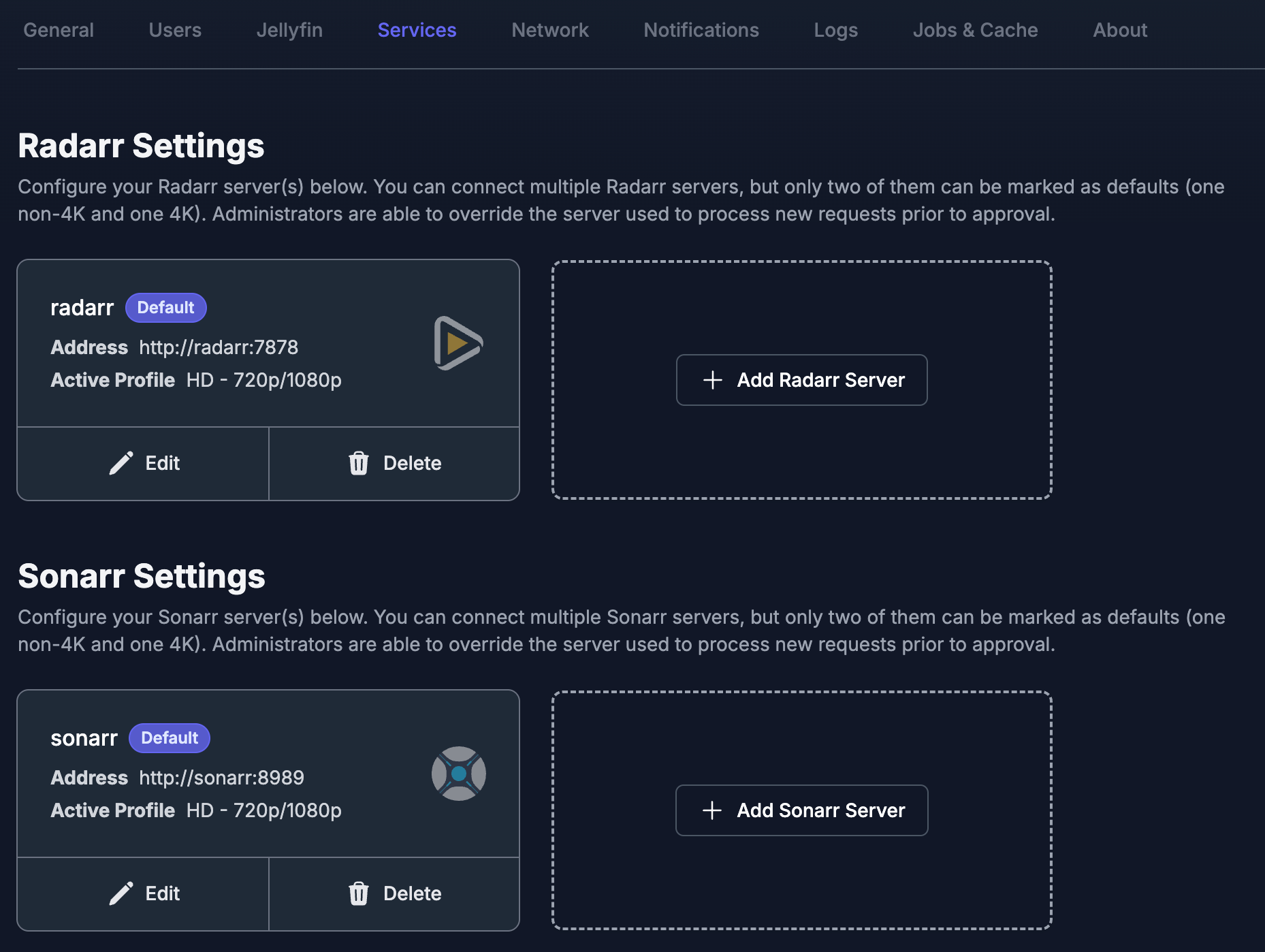
The good thing about Jellyseerr is that you can configure notifications. More than once, a user requested a movie and I did not see it. Now, whenever someone makes a request, I know immediately.
Bazarr
Downloading subtitles has always been the annoying part of downloading movies. You need to find one that is properly synced with the movie you downloaded. Also, because most torrents are in English, they do not come with Portuguese subtitles, so I need to look for the subtitles myself.
Even though it is possible to download subtitles manually with the OpenSubtitles plugin in Jellyfin, Bazarr is a huge help because it does this automatically. When it sees that new media has been added, it searches for subtitles in the chosen language across several subtitle websites and renames the file so it works immediately when you start watching.
Add this to your docker-compose.yaml:
bazarr:
  image: linuxserver/bazarr:latest
  container_name: bazarr
  restart: on-failure:3
  healthcheck:
    test: curl -fsS http://127.0.0.1:6767/
    start_period: 60s
    start_interval: 5s
    retries: 3
  ports:
    - 6767:6767
  environment:
    - TZ=America/Sao_Paulo
    - PUID=1000
    - PGID=1000
  volumes:
    - /mnt/gigachad/data/media:/data/media
    - ./configs/bazarr:/config
Here, a few things need to be configured. Go to Settings -> Radarr/Sonarr and configure the address of your Radarr and Sonarr. This is how Bazarr discovers new media as soon as it becomes available.
Go to the Providers section and configure all subtitle websites you usually use. For me, these are enough:
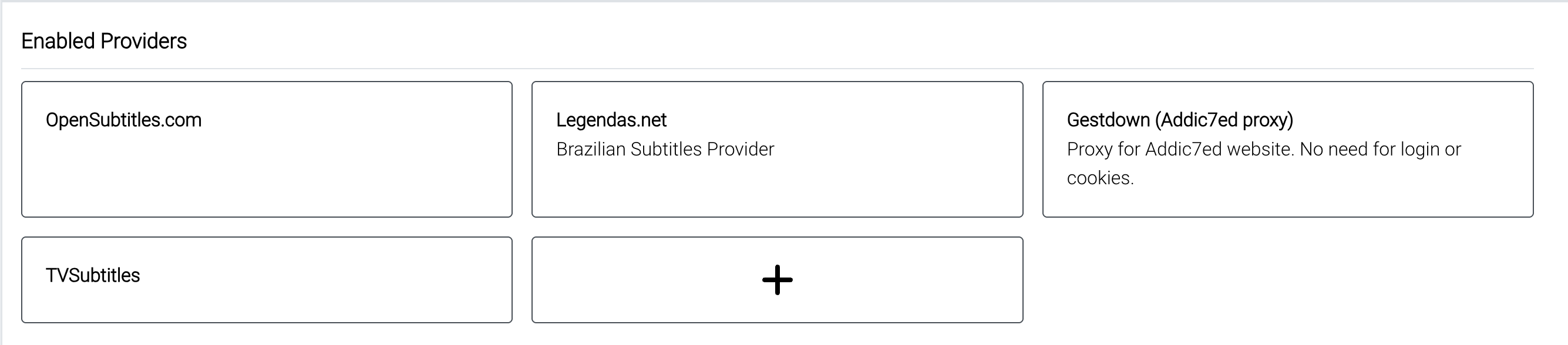
Another important part is selecting which languages you want to download automatically. This is done in Settings -> Languages. In this tab, you need to configure three parts: choose the languages, create a language profile, and at the bottom of the page select them so they are added by default whenever media is added to Bazarr.
With these settings, Bazarr will download subtitles by itself in the chosen language. But it is not perfect. Many times I have had to search again because it downloaded subtitles that were out of sync. But most of the time it gets it right, which is good. Bazarr has a feature to sync subtitles with the audio, but in my experience it never worked properly.
Conclusion
With these services, you already have a complete and well-automated stack. Whenever I want to watch a new movie, I go to Jellyseerr, make the request, and that is it. In a few minutes, depending on the number of seeders and the movie size, the movie is ready to watch and already has subtitles. I share this with three other people and the process is the same for them. If it is someone close to you, you can configure requests to be approved automatically.
The main problems here are torrent selection, which can be handled with the scoring system, and subtitles, which sometimes require manual intervention.
There is a lot to improve. In the future, I will write another post only about improvements.
I will leave the full docker-compose.yaml file here in case you want to use it.
services:
  qbittorrent:
    image: linuxserver/qbittorrent:latest
    container_name: qbittorrent
    restart: on-failure:3
    healthcheck:
      test: curl -fsS http://127.0.0.1:8080/api/v2/app/version https://icanhazip.com
      start_period: 30s
      start_interval: 5s
      retries: 3
    ports:
      - '8080:8080'
    environment:
      - TZ=America/Sao_Paulo
      - WEBUI_PORT=8080
      - PUID=1000
      - PGID=1000
    volumes:
      - ./configs/qbittorrent:/config
      - /mnt/gigachad/data/torrents:/data/torrents/

  radarr:
    image: linuxserver/radarr:latest
    container_name: radarr
    restart: on-failure:3
    healthcheck:
      test: curl -fsS http://127.0.0.1:7878/ping
      start_period: 45s
      start_interval: 5s
      retries: 3
    depends_on:
      - qbittorrent
    ports:
      - '7878:7878'
    environment:
      - TZ=America/Sao_Paulo
      - PUID=1000
      - PGID=1000
    volumes:
      - ./configs/radarr:/config
      - /mnt/gigachad/data:/data

  sonarr:
    image: linuxserver/sonarr:latest
    container_name: sonarr
    restart: on-failure:3
    healthcheck:
      test: curl -fsS http://127.0.0.1:8989/ping
      start_period: 45s
      start_interval: 5s
      retries: 3
    depends_on:
      - qbittorrent
    ports:
      - '8989:8989'
    environment:
      - TZ=America/Sao_Paulo
      - PUID=1000
      - PGID=1000
    volumes:
      - ./configs/sonarr:/config
      - /mnt/gigachad/data:/data

  bazarr:
    image: linuxserver/bazarr:latest
    container_name: bazarr
    restart: on-failure:3
    healthcheck:
      test: curl -fsS http://127.0.0.1:6767/
      start_period: 60s
      start_interval: 5s
      retries: 3
    ports:
      - '6767:6767'
    environment:
      - TZ=America/Sao_Paulo
      - PUID=1000
      - PGID=1000
    volumes:
      - /mnt/gigachad/data/media:/data/media
      - ./configs/bazarr:/config

  flare-bypasser:
    image: ghcr.io/yoori/flare-bypasser:latest
    container_name: flare-bypasser
    restart: on-failure:3
    environment:
      UNUSED: "false"
      DEBUG: "false"
      VERBOSE: "false"
      SAVE_CHALLENGE_SCREENSHOTS: "false"

  prowlarr:
    image: linuxserver/prowlarr:latest
    container_name: prowlarr
    restart: on-failure:3
    healthcheck:
      test: curl -fsS http://127.0.0.1:9696/ping
      start_period: 45s
      start_interval: 5s
      retries: 3
    environment:
      - TZ=America/Sao_Paulo
      - PUID=1000
      - PGID=1000
    ports:
      - '8191:8191'
    volumes:
      - ./configs/prowlarr:/config

  jellyfin:
    image: linuxserver/jellyfin:latest
    container_name: jellyfin
    restart: on-failure:3
    environment:
      - TZ=America/Sao_Paulo
      - PUID=1000
      - PGID=1000
    ports:
      - '8096:8096'
    volumes:
      - ./configs/jellyfin/:/config
      - /mnt/gigachad/data/media:/data/media

  jellyseerr:
    image: ghcr.io/fallenbagel/jellyseerr:latest
    container_name: jellyseerr
    restart: on-failure:3
    healthcheck:
      test: "wget http://127.0.0.1:5055/api/v1/status -qO /dev/null"
      interval: 30s
      retries: 10
    environment:
      - TZ=America/Sao_Paulo
    ports:
      - '5055:5055'
    volumes:
      - ./configs/jellyseerr/:/app/config